Host
Controls the room and live timing decisions.
Start with the setting you need to run. Each workflow shows how a room, a shared display, and the right read-only views can keep people aligned without exposing host controls.
Source of truth
1 room
One clock for every timer in the session.
Shared views
5 views
Separate timing context for every role.
Find your workflow
Choose the live setting first. The detailed guide then shows the timing setup, display pattern, and role workflow that fits it.

Keep keynotes, breakout sessions, panels, and stage displays on one visible schedule.
Hosts, moderators, speakers, and stage displays.
Explore workflow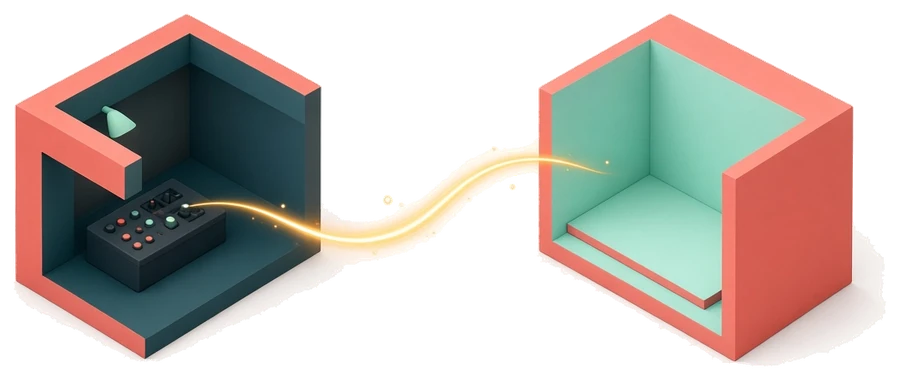
Give hosts, speakers, producers, and screen-share operators the same countdown.
Webinar hosts, speakers, producers, and shared screens.
Explore workflow
Time agendas, standups, reviews, and remote team calls without interrupting the room.
Facilitators, attendees, and meeting-room displays.
Explore workflow
Keep speaker rounds, moderator pacing, and audience Q&A within the session plan.
Moderators, panelists, producers, and audience displays.
Explore workflow
Run student presentations, lesson transitions, debate rounds, and class activities on time.
Teachers, students, and classroom screens.
Explore workflow
Practice timed talks, coaching sessions, pitch events, and stage remarks with clear pacing cues.
Speakers, coaches, event hosts, and confidence monitors.
Explore workflow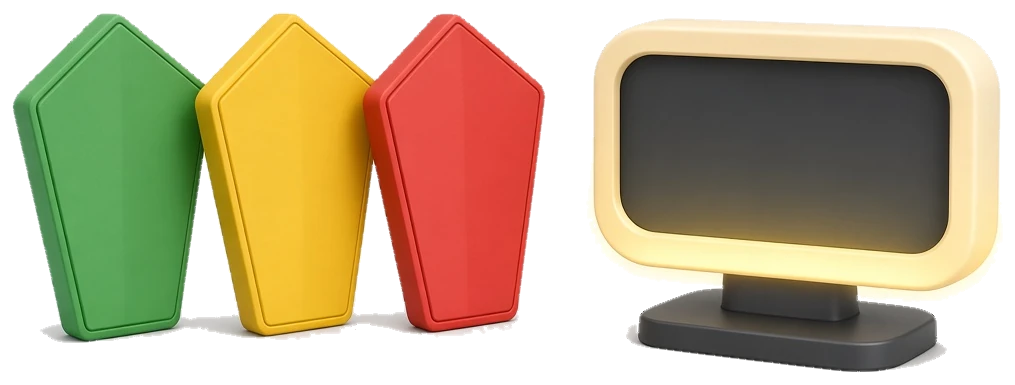
Show green, yellow, and red remaining-time cues for Table Topics, prepared speeches, and evaluations.
Timers, operators, speakers, and lectern or meeting displays.
Explore workflow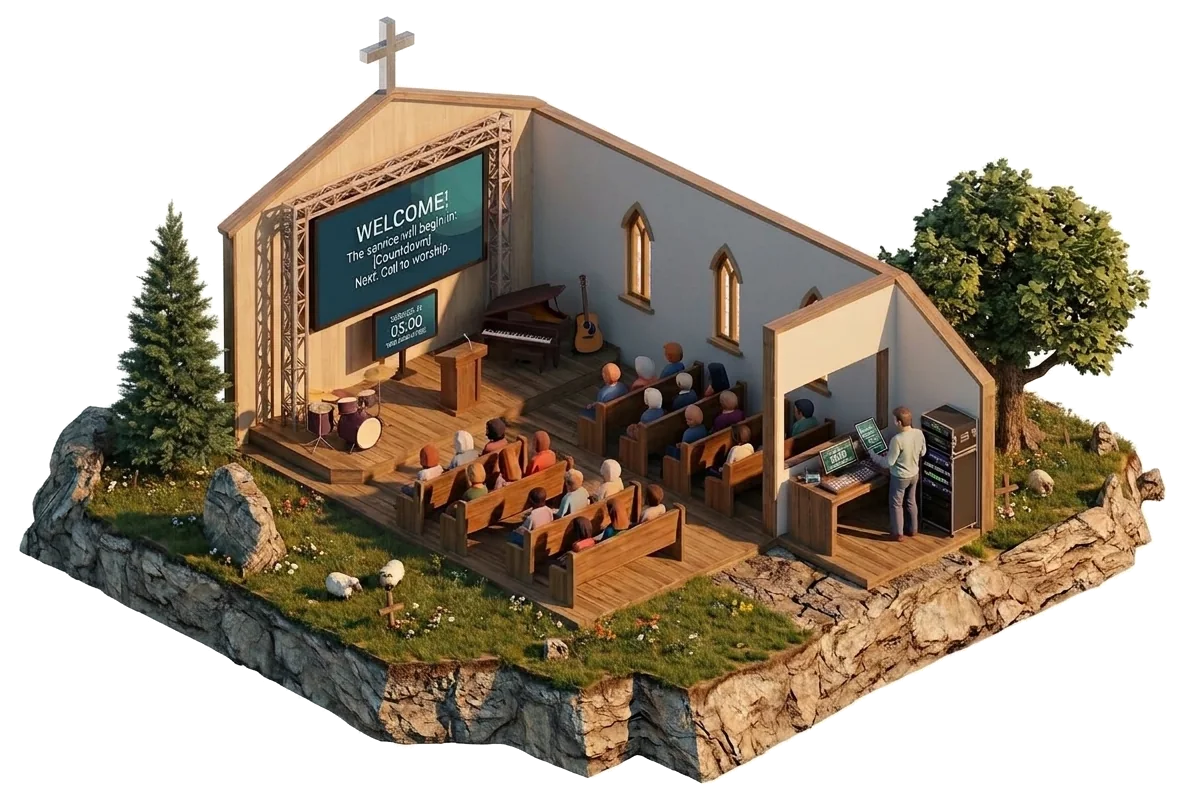
Run the pre-service countdown, time every service segment, and give the pastor a private clock.
Service hosts, pastors, tech booths, and sanctuary displays.
Explore workflow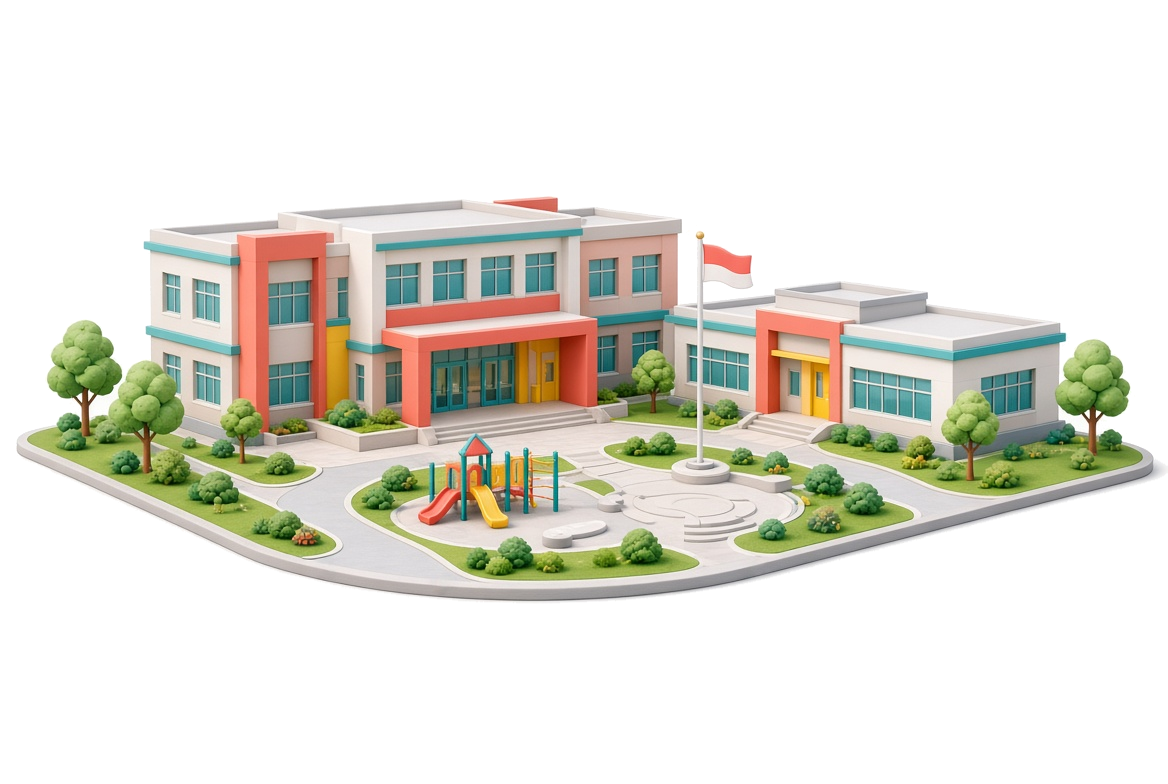
Put a full-screen countdown on the hall projector, with reading time before the paper and controls on the invigilator's phone.
Invigilators, proctors, and exam-hall displays.
Explore workflowOne room, clear roles
Use the view that matches the person's job in the session. The host keeps control, while the display and read-only views keep time visible where it matters.
Host
Controls the room and live timing decisions.
Display
Shows the active countdown to the room.
Speaker
Follows timing cues without access to controls.
Moderator
Tracks the current and next segment without taking control.
Agenda
Shares the session flow as a read-only view.
Start with one room
The host gets the controls. Your display, speaker, moderator, and agenda views are ready when the session needs them.